1 About LINKWORX
1.1 Overview
LINKWORX is a cloud-based device management platform built for industrial routers, offering secure and efficient centralized control. It supports remote monitoring, configuration updates, firmware management, alerts, and data visualization, allowing teams to track device status in real time and resolve issues quickly. With flexible organization and role-based permissions, LINKWORX fits businesses of various sizes and ensures clear operational boundaries. By improving network reliability and simplifying maintenance workflows, LINKWORX provides a solid foundation for managing large-scale industrial IoT deployments.
|
Hightlight Features Deployment & Access Licensing Model Communication & Security Remote Access |
 |
2 User Role
2.1 Role Classification
Organization Admin: The highest-level role within an organization. Organization Admins can manage users, all devices, and licenses.
Device Admin: After a group is created, Device Admins can join the group to manage devices. They are able to create batch tasks.
Device Operator: After a group is created, Device Operators can join the group to manage devices. They can perform operational actions on individual devices.
User: A standard user who registers a personal account and has not yet applied to join an organization.
2.2 Permission Table
| Feature | Category | Operation | Organization Admin | Device Admin | Device Operator | user |
| Login/Registeration | Account login | Account login | ✔ | ✔ | ✔ | ✔ |
| Account registeration | Account registeration | ✔ | ✔ | |||
| Account reset password | Reset password | ✔ | ✔ | ✔ | ✔ | |
| Account application | Apply for joining organization | ✔ | ||||
| Dashboard | Major components | View | ✔ | ✔ | ✔ | |
| Device Management | Actived Device | View device list | ✔ | ✔ | ✔ | |
| Assign Group | ✔ | |||||
| License binding and unbinding | ✔ | |||||
| Delete device | ✔ | |||||
| Actived Details | Reboot | ✔ | ✔ | ✔ | ||
| Factory default | ✔ | ✔ | ✔ | |||
| Upgrade | ✔ | ✔ | ✔ | |||
| Diagnostic File | ✔ | ✔ | ✔ | |||
| Remote Access | ✔ | ✔ | ✔ | |||
| LAN Host Access | ✔ | ✔ | ✔ | |||
| Online Configuration Editor | Load Config | ✔ | ✔ | ✔ | ||
| Save | ✔ | ✔ | ✔ | |||
| Push | ✔ | ✔ | ✔ | |||
| Save as template | ✔ | ✔ | ✔ | |||
| Device Group | View group list | ✔ | ||||
| Add device | ✔ | |||||
| Remove device | ✔ | |||||
| Add User | ✔ | |||||
| Remove User | ✔ | |||||
| Create new group | ✔ | |||||
| Delete group | ✔ | |||||
| Inventory Device | View Inventory | ✔ | ✔ | ✔ | ||
| Add device | ✔ | |||||
| Delete device | ✔ | |||||
| Batch Task | Task Statistics | Task Statistics | ✔ | ✔ | ||
| Create Task | ✔ | ✔ | ||||
| View Details | ✔ | ✔ | ||||
| Terminate | ✔ | ✔ | ||||
| Task Details | Vew details | ✔ | ✔ | |||
| Alert | Alert dashboard | Alert Statistics | ✔ | ✔ | ✔ | |
| Mark as acknowledged | ✔ | ✔ | ✔ | |||
| Alert Settings | Email notification settings | ✔ | ||||
| File Management | Firmware | Add file | ✔ | ✔ | ✔ | |
| Delete file | ✔ | ✔ | ✔ | |||
| APP | Add file | ✔ | ✔ | ✔ | ||
| Delete file | ✔ | ✔ | ✔ | |||
| Config File | Add file | ✔ | ✔ | ✔ | ||
| Delete file | ✔ | ✔ | ✔ | |||
| Administration | User Profile | Reset password | ✔ | ✔ | ✔ | |
| User List | View user list | ✔ | ||||
| Edit user permisstion | ✔ | |||||
| Delete user | ✔ | |||||
| Invite user | ✔ | |||||
| Approvel user application | ✔ | |||||
| Company Profile | View | ✔ | ✔ | ✔ | ||
| Edit | ✔ | |||||
| System | Operation Log | View log | ✔ |
3 Organization Management
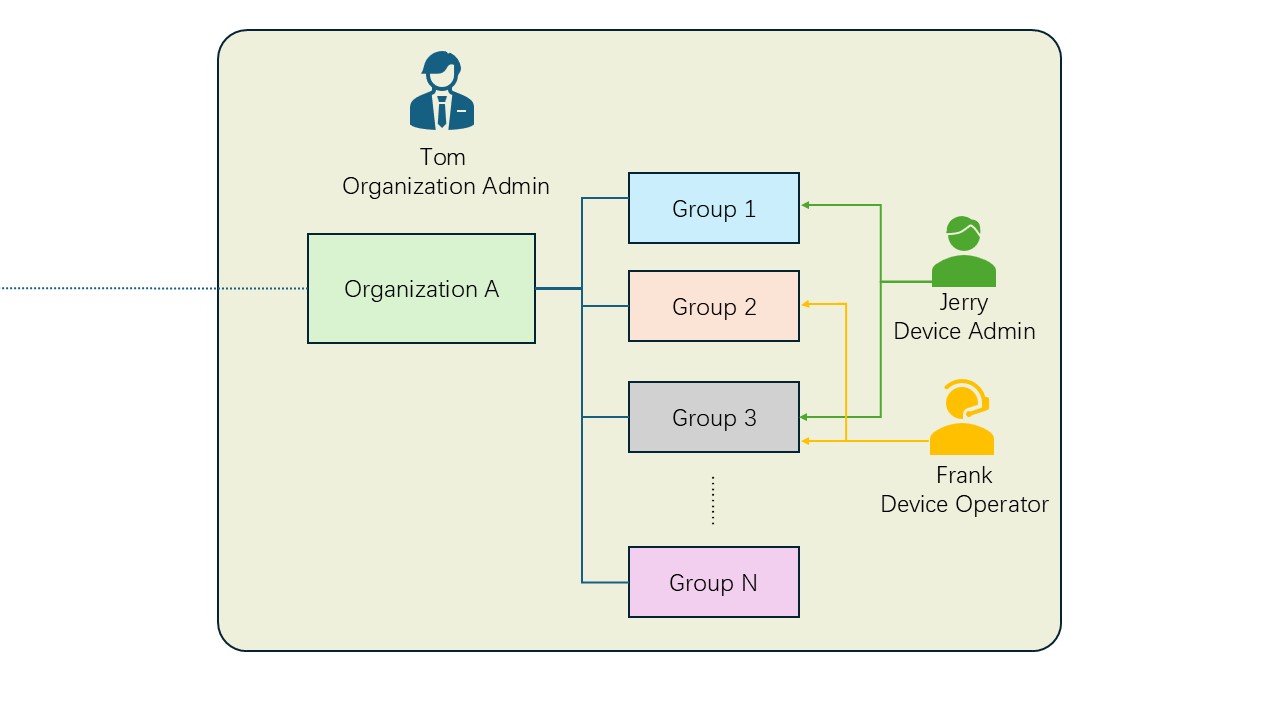
Each organization in LINKWORX supports a two-level structure: the root organization and its device groups. By default, all users and devices are placed under the Default directory. Within each organization, Organization Admin can create multiple device groups according to project or operational needs, forming a hierarchical structure as illustrated.
3.1 Role Visibility and Permissions
Organization Admins have full visibility and control over all device groups and all users within the organization.
Device Admins and Device Operators are assigned at the device group level, and their permissions apply only to the groups they join.
Example Structure
In the following example, Organization A contains several device groups, from Group 1 to Group N:
Jerry (Device Admin) is assigned to Group 1 and Group 3, allowing him to manage devices within those two groups.
Frank (Device Operator) is assigned to Group 2 and Group 3, enabling him to operate devices within those groups.
3.2 Management Principles
* Each device can belong to only one device group at any given time.
* Device Admins and Device Operators may belong to multiple device groups depending on operational responsibilities.
* When deleting a device group, all devices and users must be removed from the group beforehand to ensure data integrity.
4 License Management
4.1 License Requirement and Scope
Devices connecting to the LINKWORX platform do not require a valid license. Basic connectivity and Statistics do not consume a license, but advanced platform functions—such as device details, configuration management, and remote operations—are only available when a license is assigned. Each device is strictly associated with one unique license.
A license becomes active upon its first successful binding to a device. Licenses include a 30-day countdown reminder before expiration to help administrators plan renewals in advance. Binding can be done for individual devices or in bulk through the device activation list. Each binding requires a minimum period of 30 days, after which unbinding is allowed.
A license may be unbound during its valid period, but the expiration time continues to count down regardless of its binding status. After unbinding, administrators should reassign the license to another device as soon as possible to maximize utilization. Expired licenses can no longer enable advanced features until renewed.
4.2 License Acquisition and Trial Period
New users receive trial licenses to explore platform capabilities. For official license purchases, please contact your sales representative. After order confirmation, the system automatically issues the purchased licenses to the organization, where enterprise administrators can centrally allocate and manage them.