1 Overview
The Remote Access feature allows you to securely reach a device’s web interface or access a specific device located behind the router on its LAN port. You can choose from HTTP, HTTPS, or a designated TCP port depending on the service you need to connect to.
Only one access mode
* Remote Access to the router itself or LAN Access to a downstream device can be active at a time.
* Once initiated, the platform will generate a temporary connection link. Each session is valid for up to 8 hours, after which the platform automatically terminates the connection.
* This feature is intended for troubleshooting, diagnostics, or temporary configuration tasks and should not be used as a permanent remote management method.
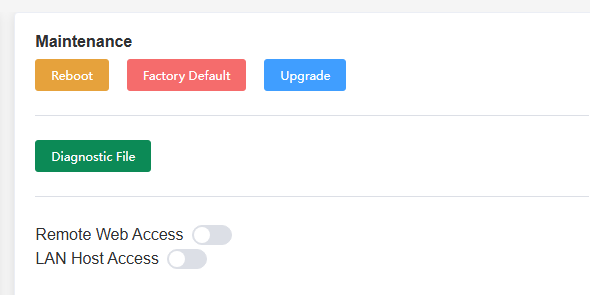
2 Remote Web Access
| Enable Remote Web Access | Click the link and open on broswer tab | You can modify the settings as local web login. | ||
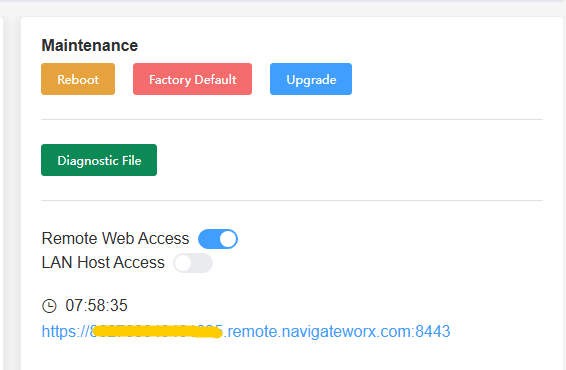 |
-> | 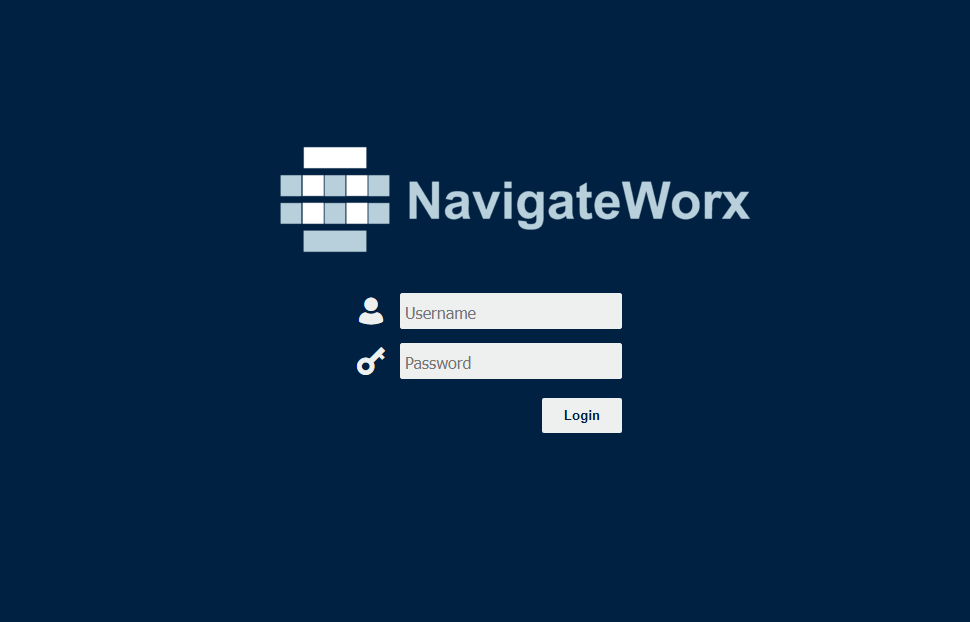 |
-> | 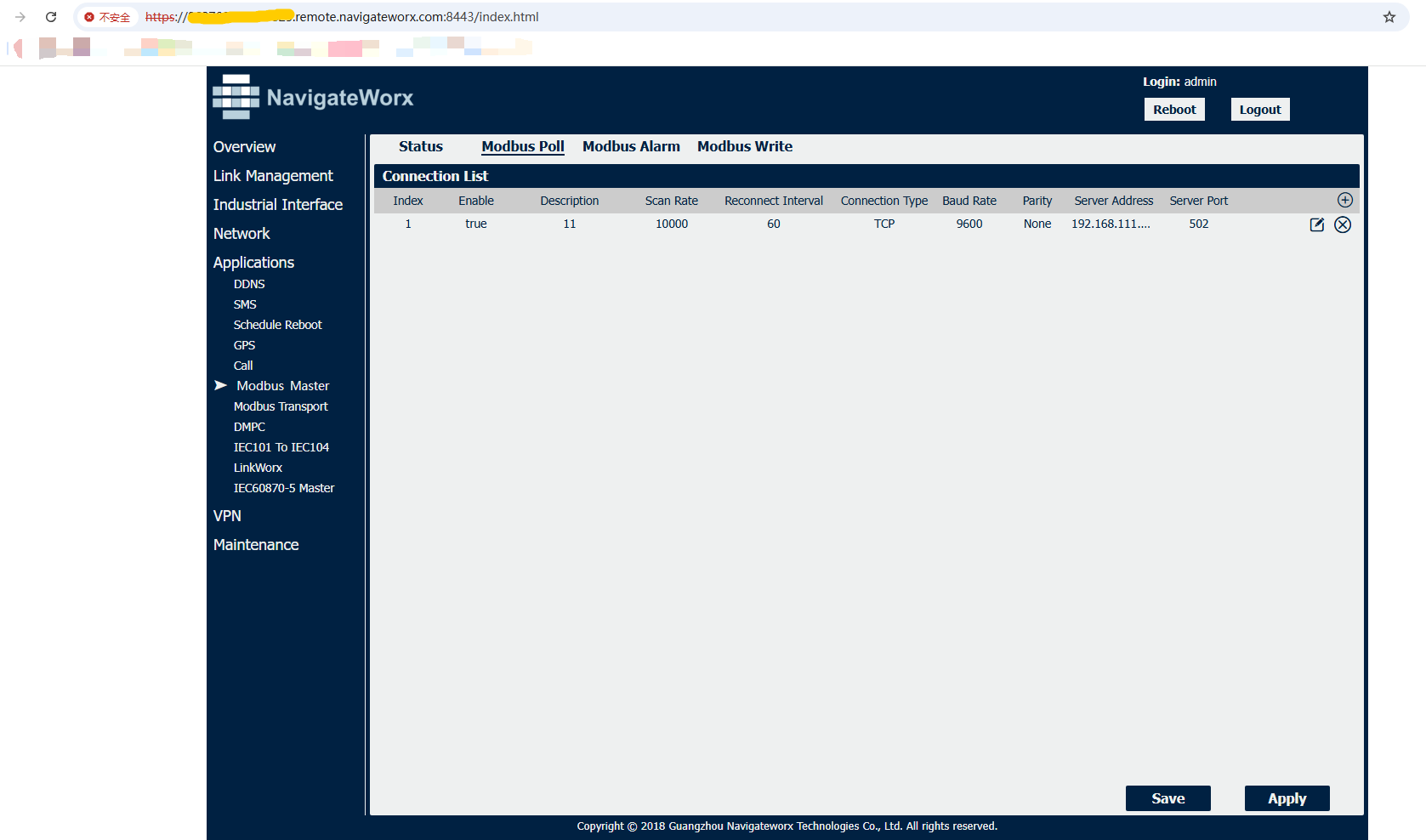 |
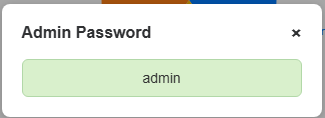
Note: if you forgot the login password, you could check the real-time password here.
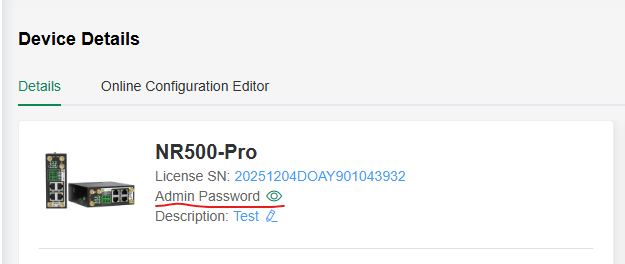
Click the green box to automatically copy the password.
3 LAN Host Access
Before enabling the LAN Host Access feature, please verify the following settings to avoid configuration errors:
1. The target host IP address and port have been correctly configured.
2. The protocol is selected as HTTP, HTTPS, or TCP.
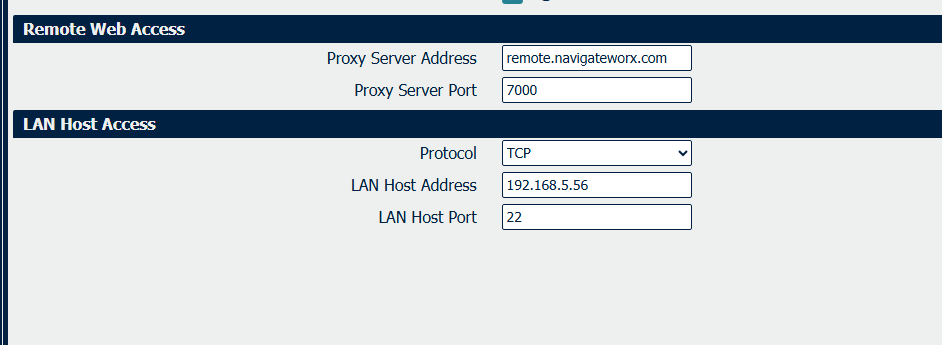
3. Ensure the LAN device you want to access has its gateway set to the router, such as 192.168.5.1/24.
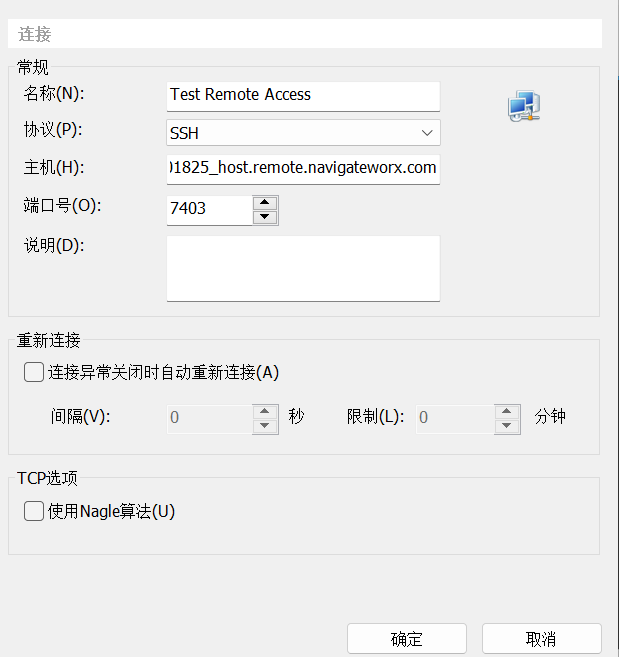
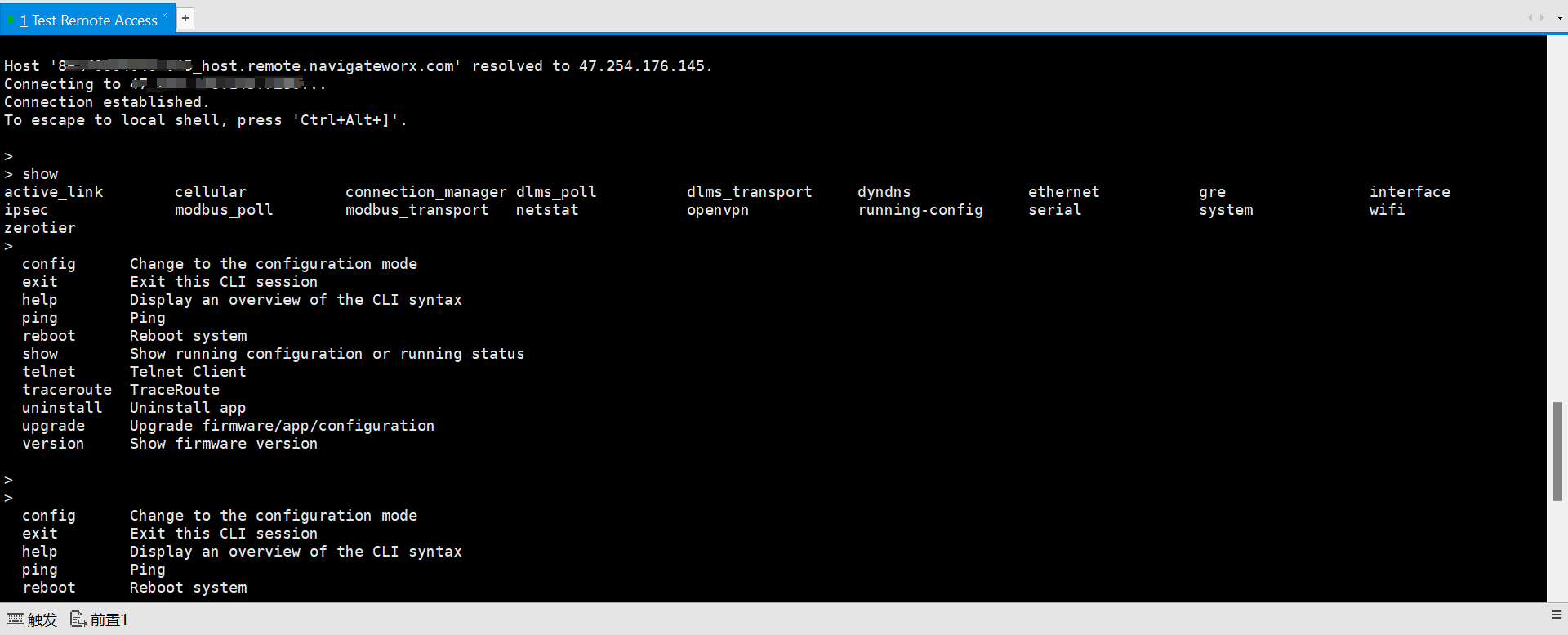
4. After the connection is established, the external destination will be xxxxxx_host.remote.navigateworx.com with external port 7403. Accessing this domain and port will forward traffic to the corresponding internal address, for example: 192.168.5.56:22.
NOTE: The external port is updated every time it is connected and is not fixed
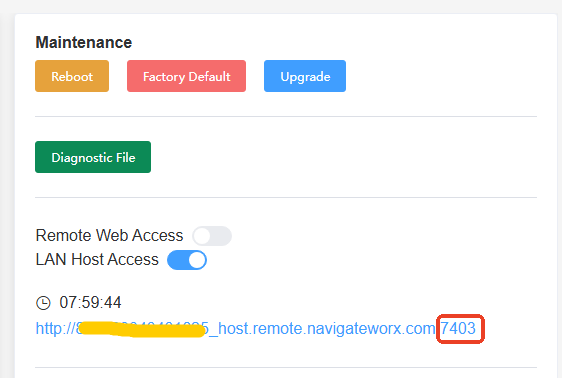
Operation Sample:
 |
-> |  |