1 Alert Statistics
The platform provides a centralized Alert system to help you monitor device health, operational status, and potential risks in real time. Alerts are automatically generated based on predefined rules, covering conditions such as connectivity issues, configuration errors, resource thresholds, and security events.
Each alert is categorized by severity—Critical, Emergency, Importance, Warning, or Inform
|
Severity |
Description |
Trigger |
| Critical | Indicates a severe issue that requires immediate attention. The problem may disrupt core services or impact large numbers of devices. | * Device Offline - MQTT disconnected |
| Emergency | Represents an urgent and high-risk situation where the system or device may be unusable. Immediate action is required to prevent further damage or downtime. | * CPU High usage |
| Importance | Highlights an important condition that could affect functionality or performance. Not urgent, but should be addressed in a timely manner. |
* SIM1 data less than 10% * SIM2 data less than 10% |
| Warning | Signals a potential risk or abnormal behavior. The system is still operating, but intervention may be needed to avoid future issues. | * High temperature |
| Inform | Provides general informational messages or status updates. No action is required; for monitoring and reference only. |
* Assign License * Task Failure * New User join the organization |
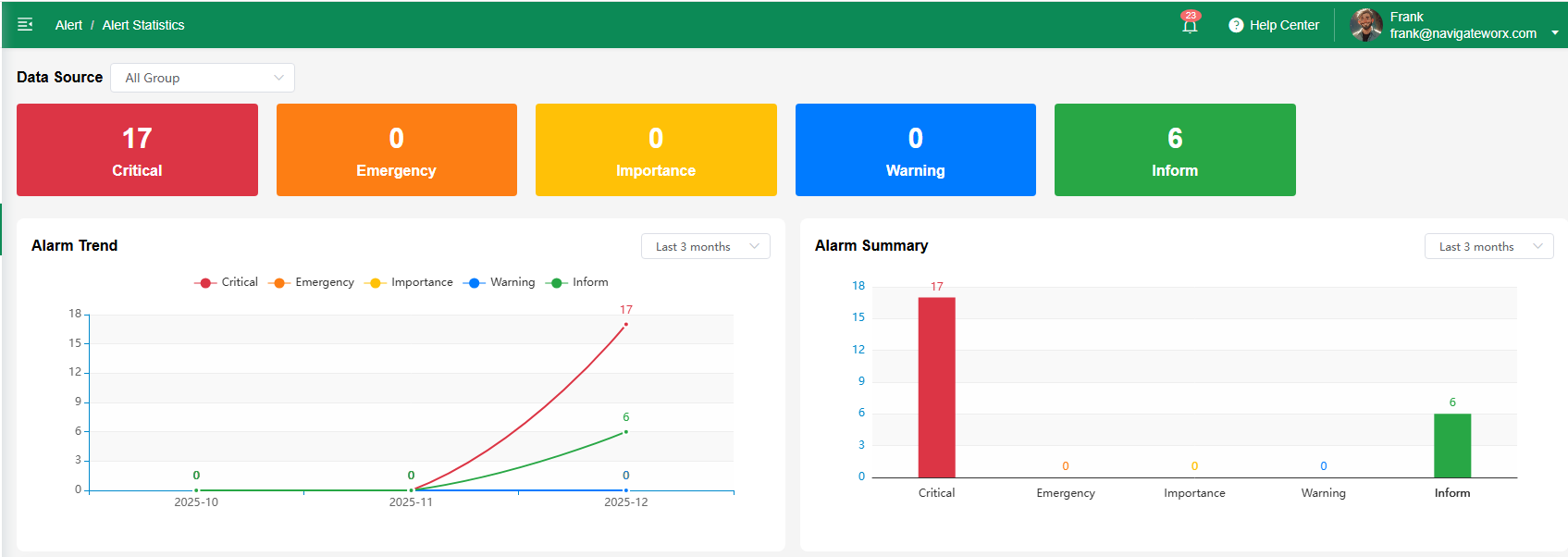
| Data Source |
Statistically analyze the device status of the enterprise/organization, where 'All' represents the status of all devices, or by grouping devices.
|
| Alarm Trend |
Displays a line chart showing the trend of alarms over time. Users can select from three time ranges: past 3 months, past 6 months, or past 12 months. This visualization helps identify patterns, recurring issues, and periods of high alert activity.
|
| Alarm Summary |
Shows a bar chart summarizing alarm counts by type or severity for the selected period. Users can analyze which issues occur most frequently and evaluate their impact on operations.
|
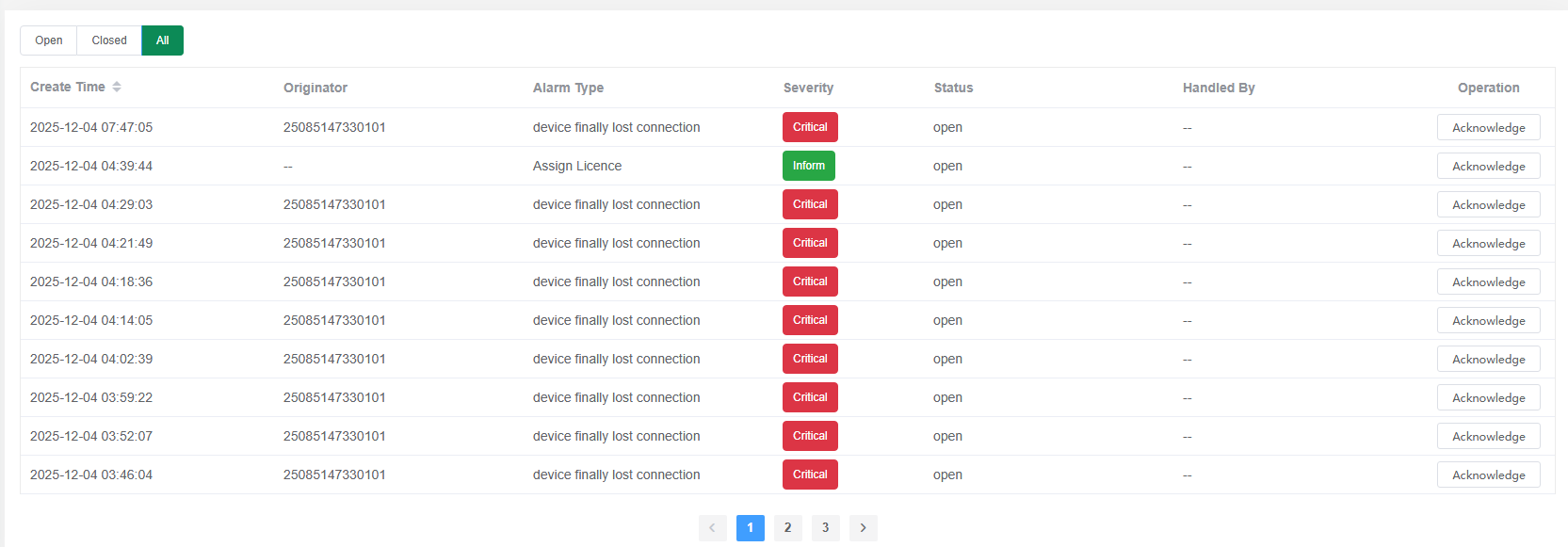
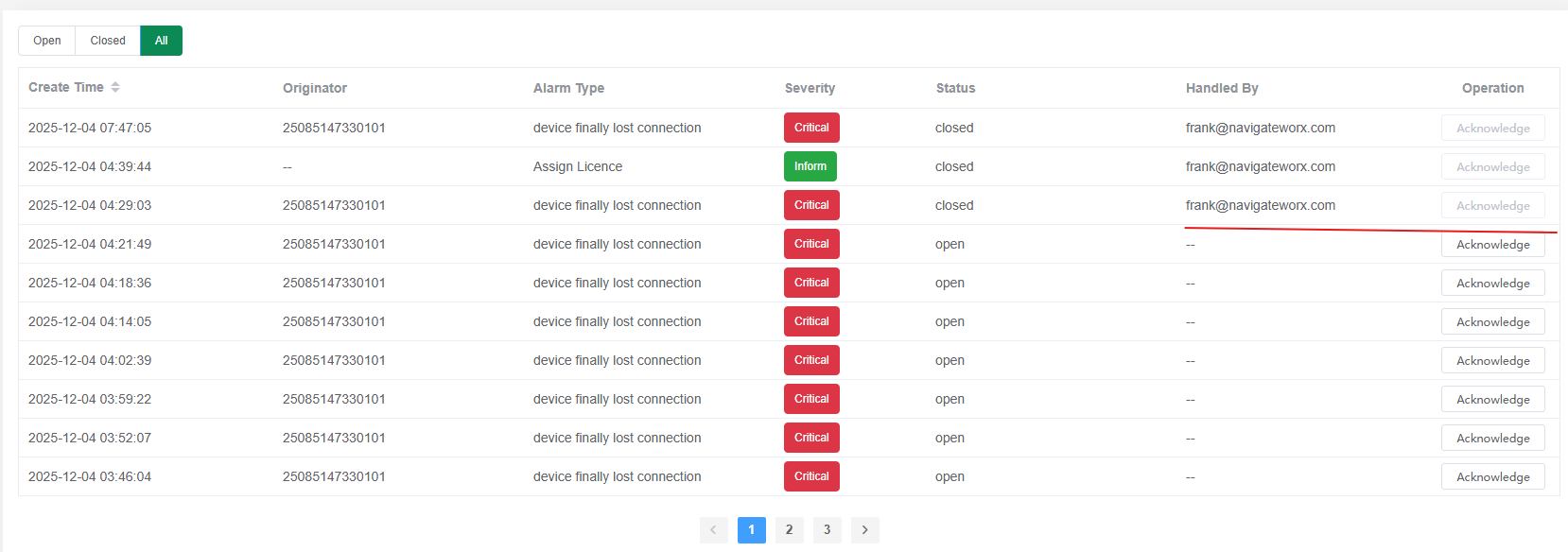
Alarm processing
Count the alarm information that has not been processed yet, click the Acknowledge button, and the processor and status will be displayed as Closed.
2 Alert Settings
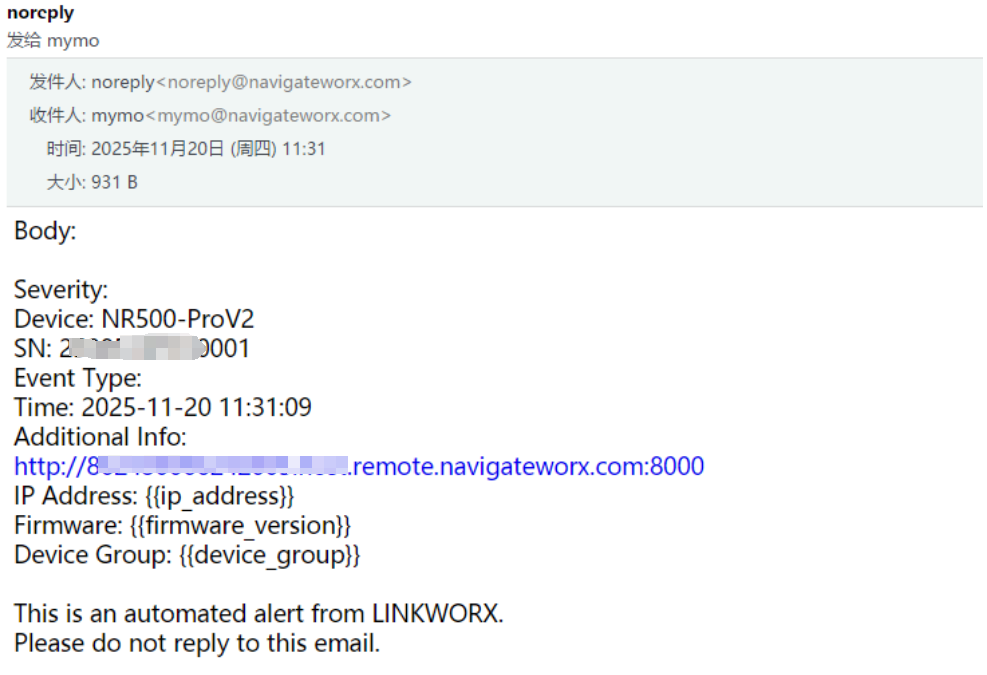
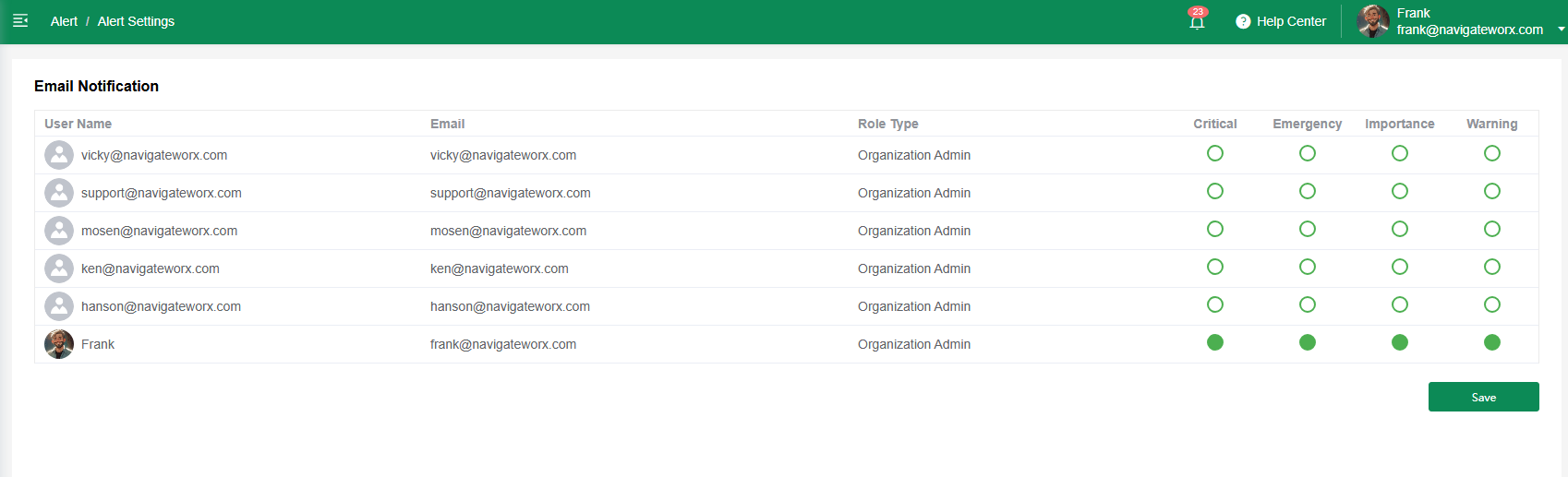
Configure which users can receive which levels of alert email notifications.
Email sample: